A free construction time clock app for your whole crew.
Your crew clocks in on their phones, on the job they're assigned to, with a photo and a location check on every punch. The office sees who's on site, fixes missed punches and exports the hours. Field App & Time Clock is free to use on its own, with no price per user.
The crew's app is "Leviathan Built" on the App Store and Google Play, and it runs in any phone's browser.
A time tracking app built around the job.
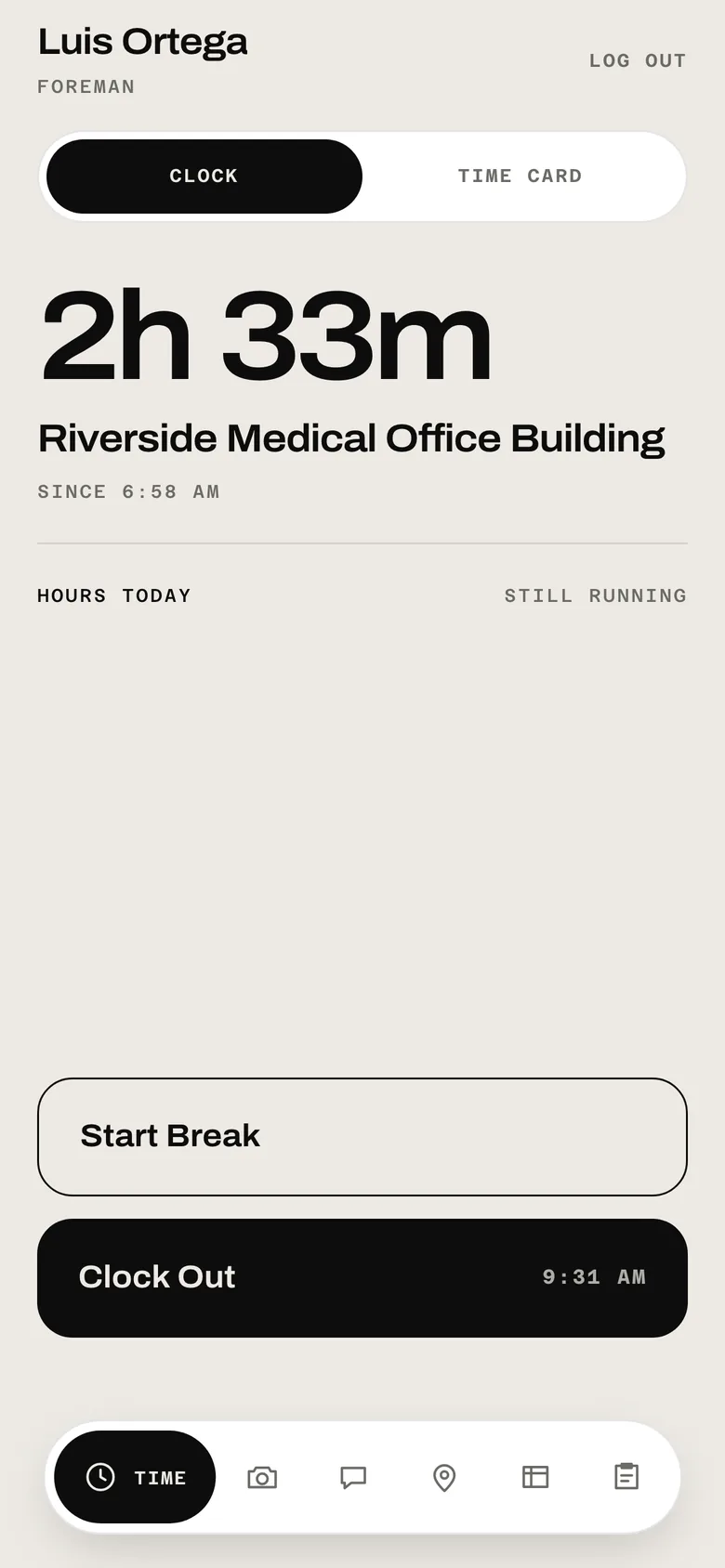
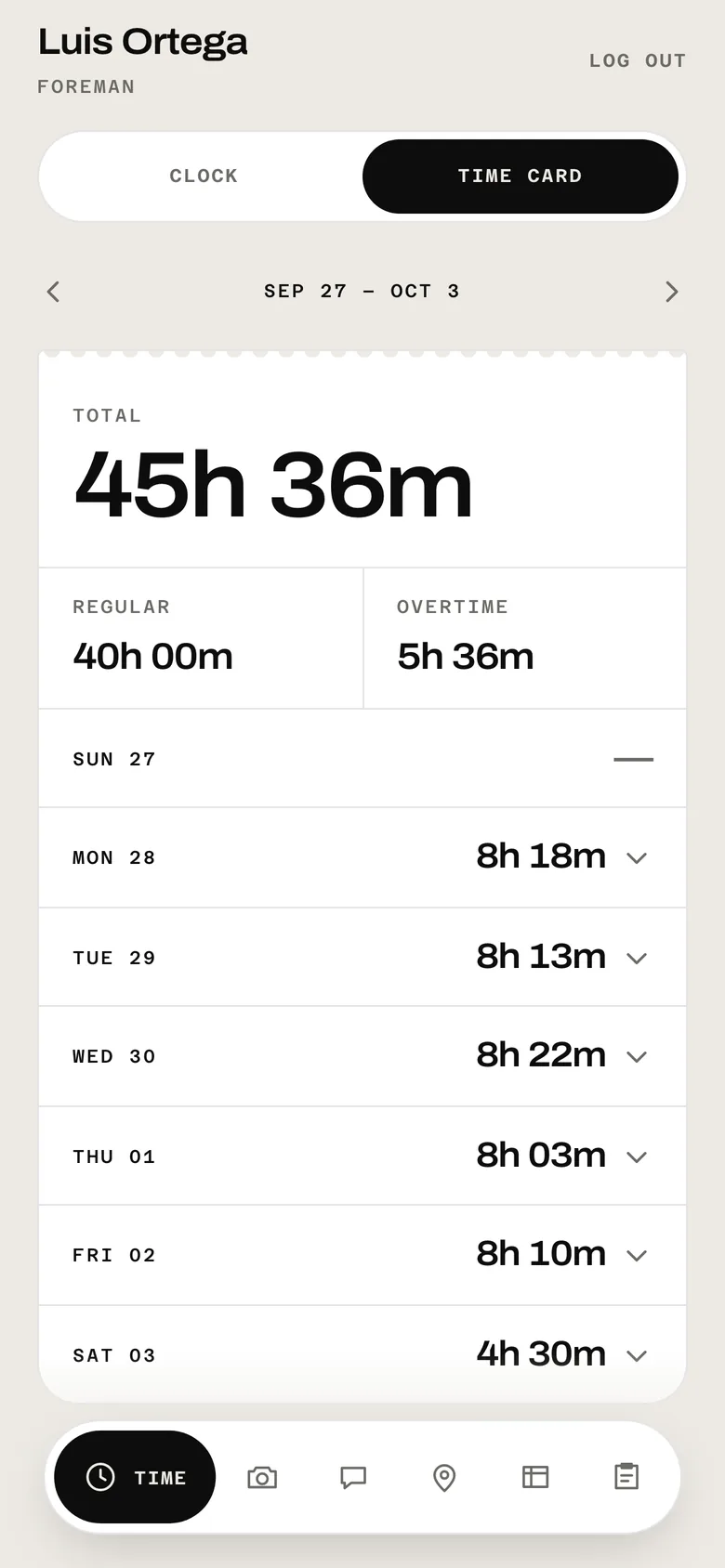
Every punch belongs to a job. A worker picks from the jobs they're assigned to, and the app takes a photo and checks their location against that job's geofence. Breaks and the week's regular and overtime hours add up on their time card.
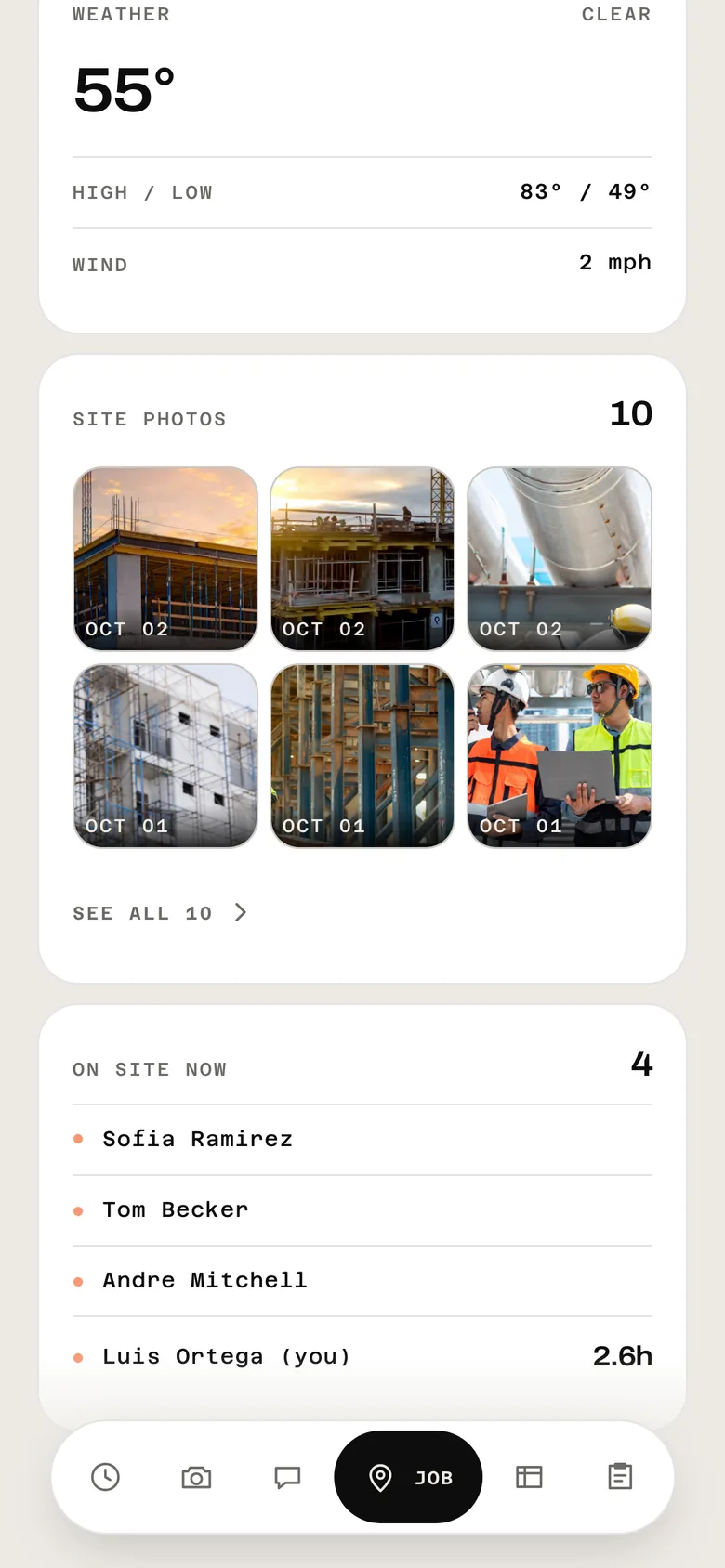
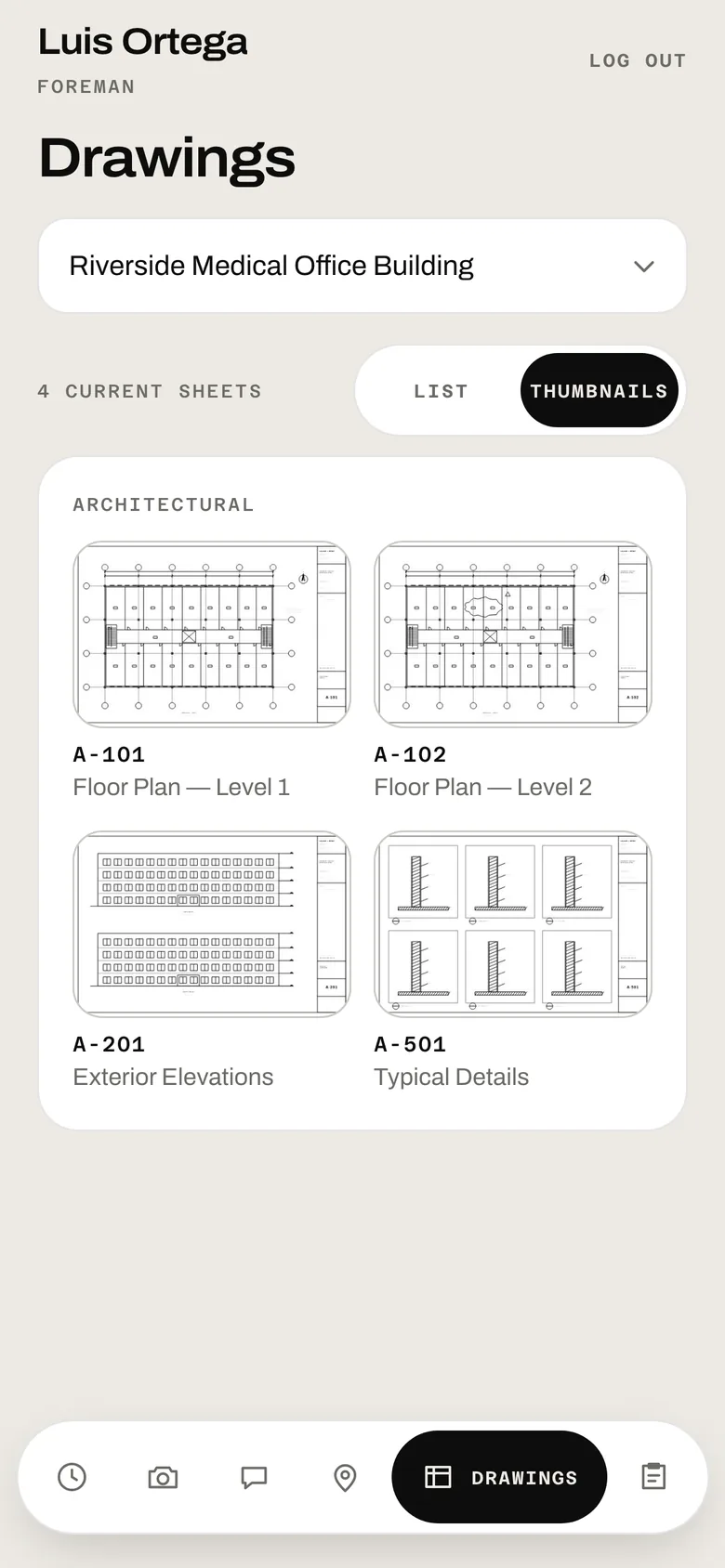
The same app carries what the crew needs on site: the job's address and weather, who's on site, the current drawings, photos filed to the job, messages to the project manager and the job's forms. The office runs the hours from Time Clock Admin.
No credit card
Not a trial
No price per user
No cap on crew size
iPhone, Android and browser
Timesheets to CSV
Set up a time clock for your crew in 6 steps
Create your free workspace
Choose Field App & Time Clock when you sign up. No card is asked for.
Add a job
In Construction, click New Project and enter the job's name, client and address. The address sets the job's geofence.
Add your crew
Click Add Employee and enter each person's name and email. They get an invite to set a password.
Put them on the job
In Time Clock Admin, Assignments sets who works on which job. A worker only sees the jobs they're assigned to.
Clock in
The crew signs in on the app or at your workspace's /clock page, picks the job under "Which job?" and clocks in. A photo is taken at clock-in and clock-out.
Check and export the hours
Records shows every shift, by employee or in order. Fix a punch, add a missed shift, then use Export CSV for the pay period.
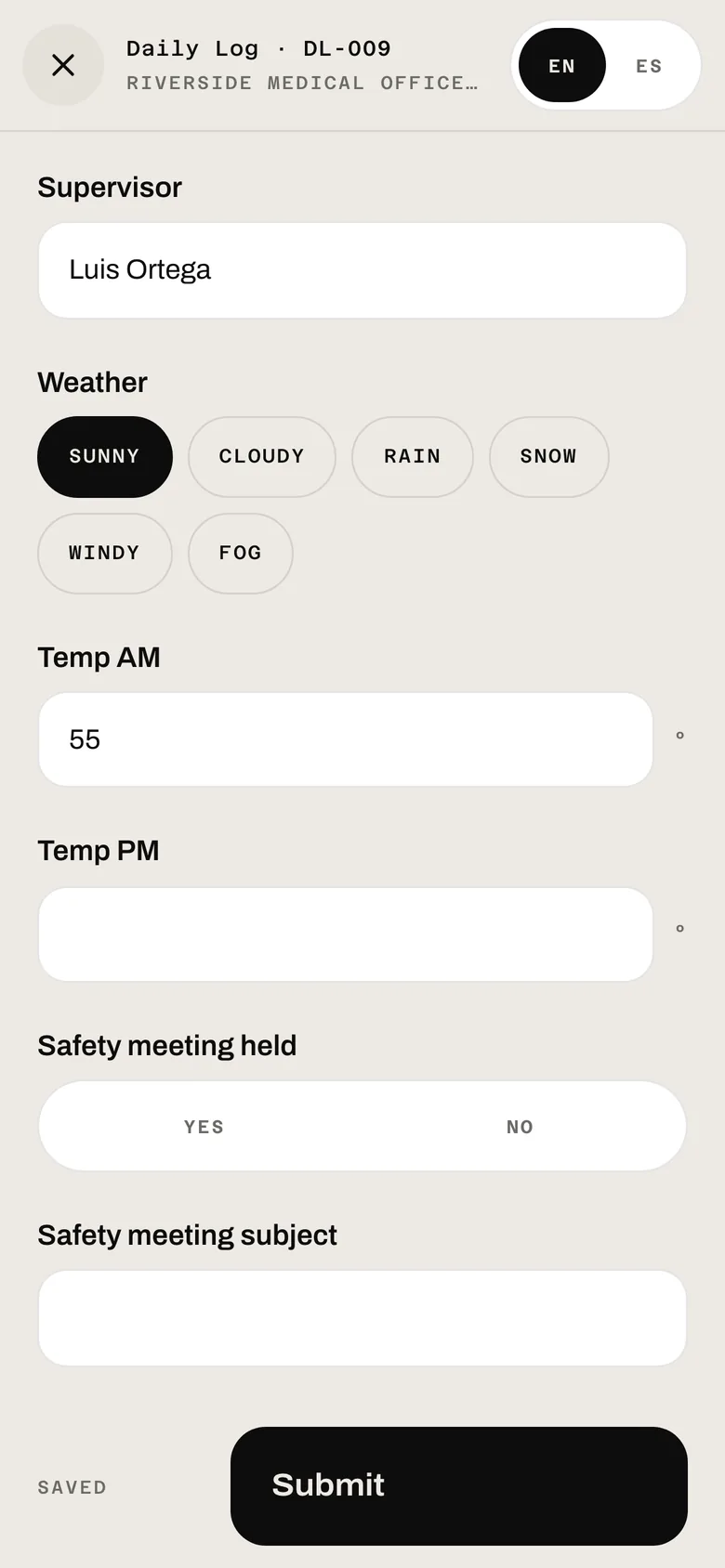
Job: weather, photos, who's on siteDrawings: the job's current sheetsForms: a daily log, with EN and ES
What's in the free time clock app.
The crew's phone app and the office's Time Clock Admin, both included.
Clock in to a job
"Which job?" lists only the jobs the worker is assigned to, so hours land on the right one.
Geofences
Each job's fence comes from its address. A punch outside it is allowed and flagged for the office.
Photo on every punch
The app takes a photo at clock-in and at clock-out.
Breaks
Start Break and End Break on the clock screen, or set an automatic break deduction for long shifts.
Weekly time card
Each worker sees their week by day, with Regular and Overtime split after 40 hours.
Face ID sign-in
After the first sign-in with email and password, the app can use Face ID instead.
Shared crew device
An admin sets up one phone for the crew, and each person signs in on it with their own email.
The job, on the phone
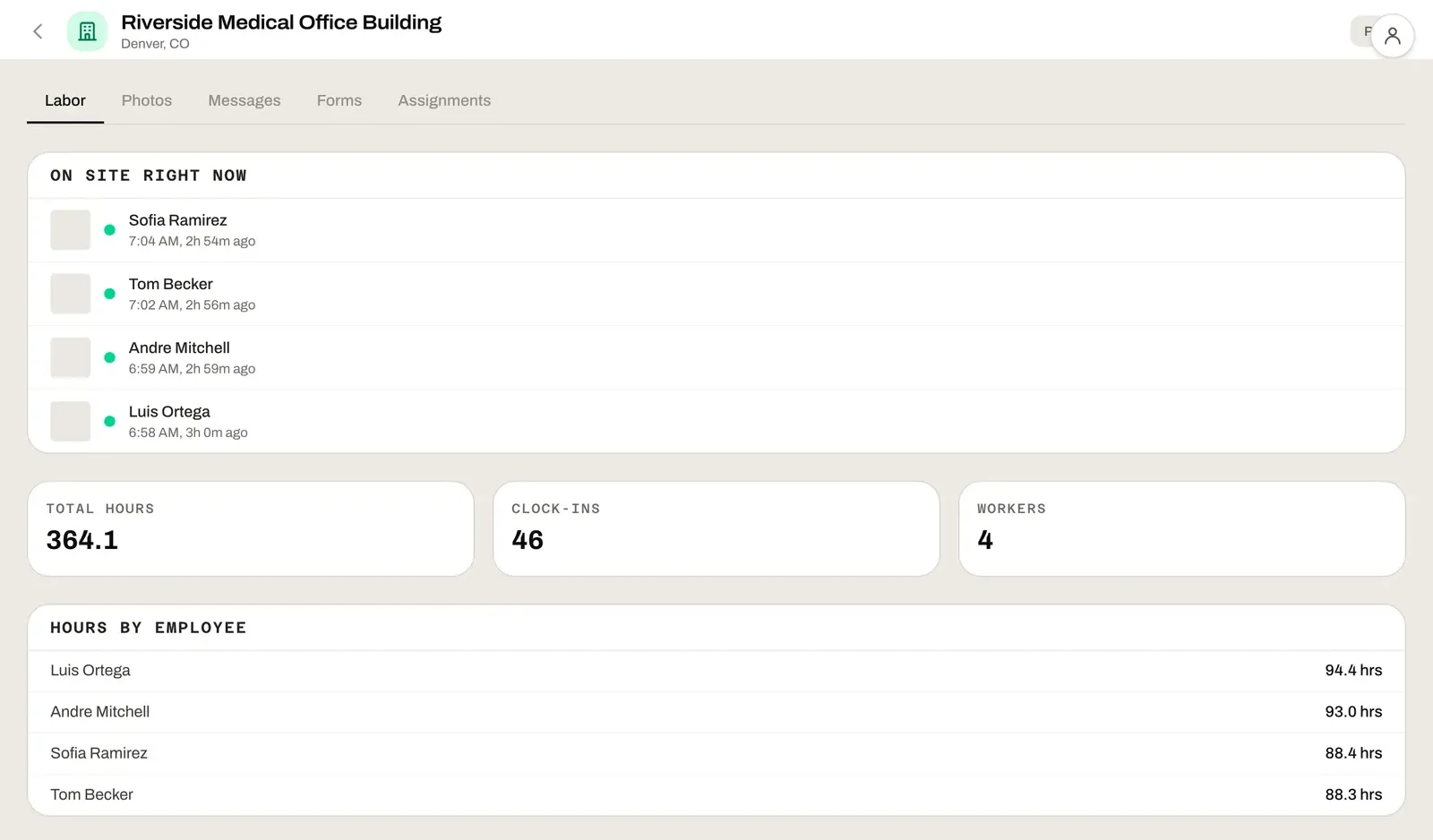
The Job tab shows the address, today's weather and who's on site right now.
Current drawings
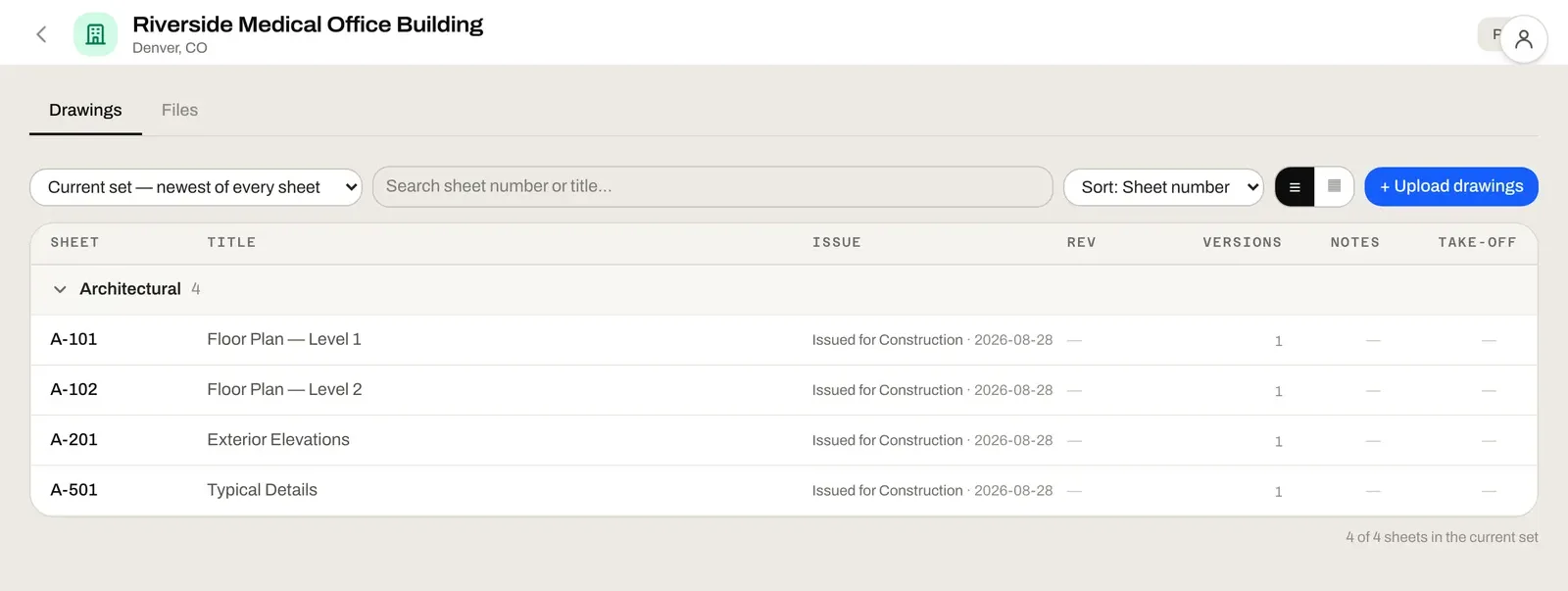
Upload a drawing set and the crew sees the job's current sheets. A new issue replaces the sheet it revises.
Job photos
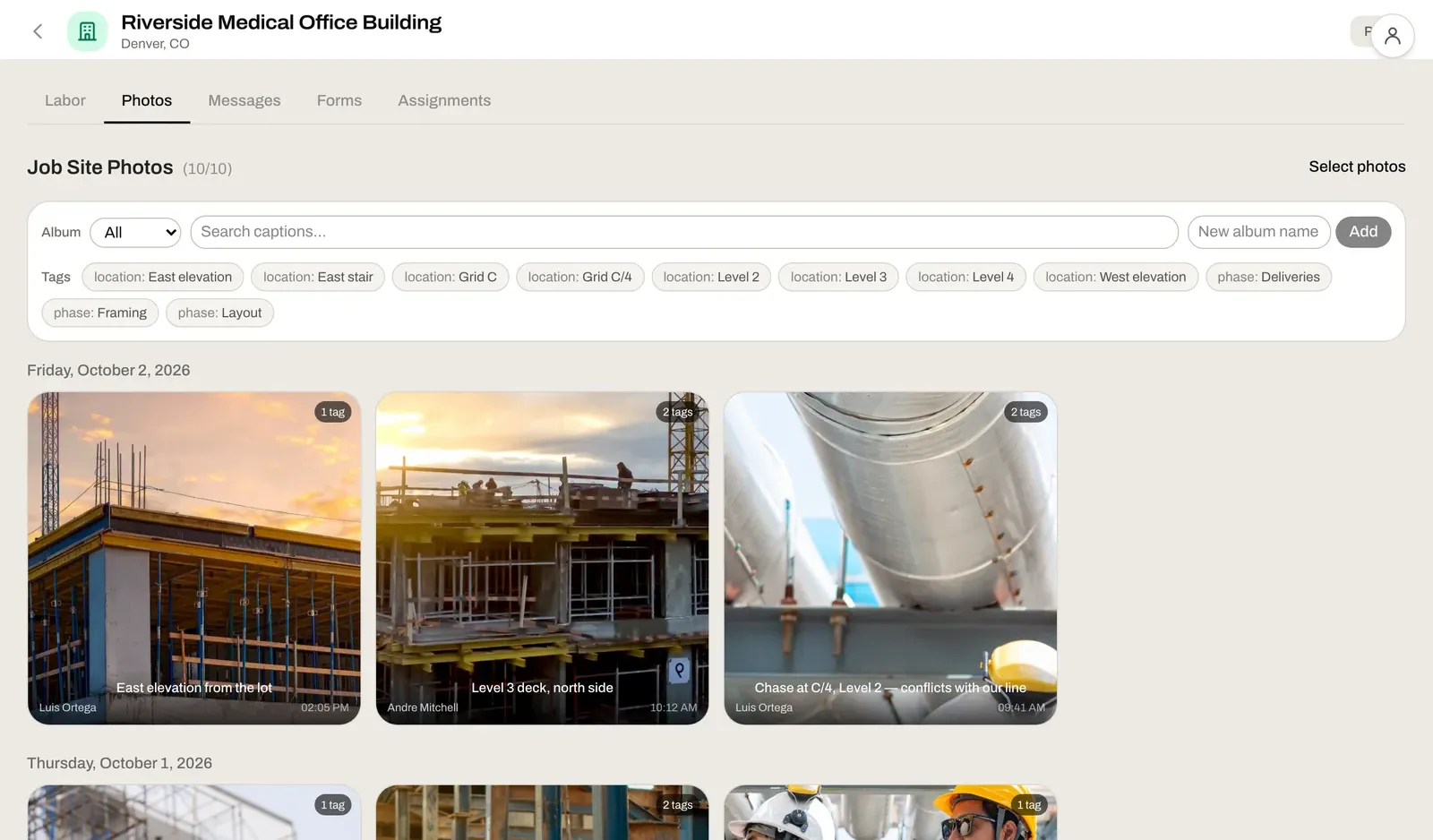
Photos and video taken in the app are filed to the job, by day, for the office to see.
Messages to the PM
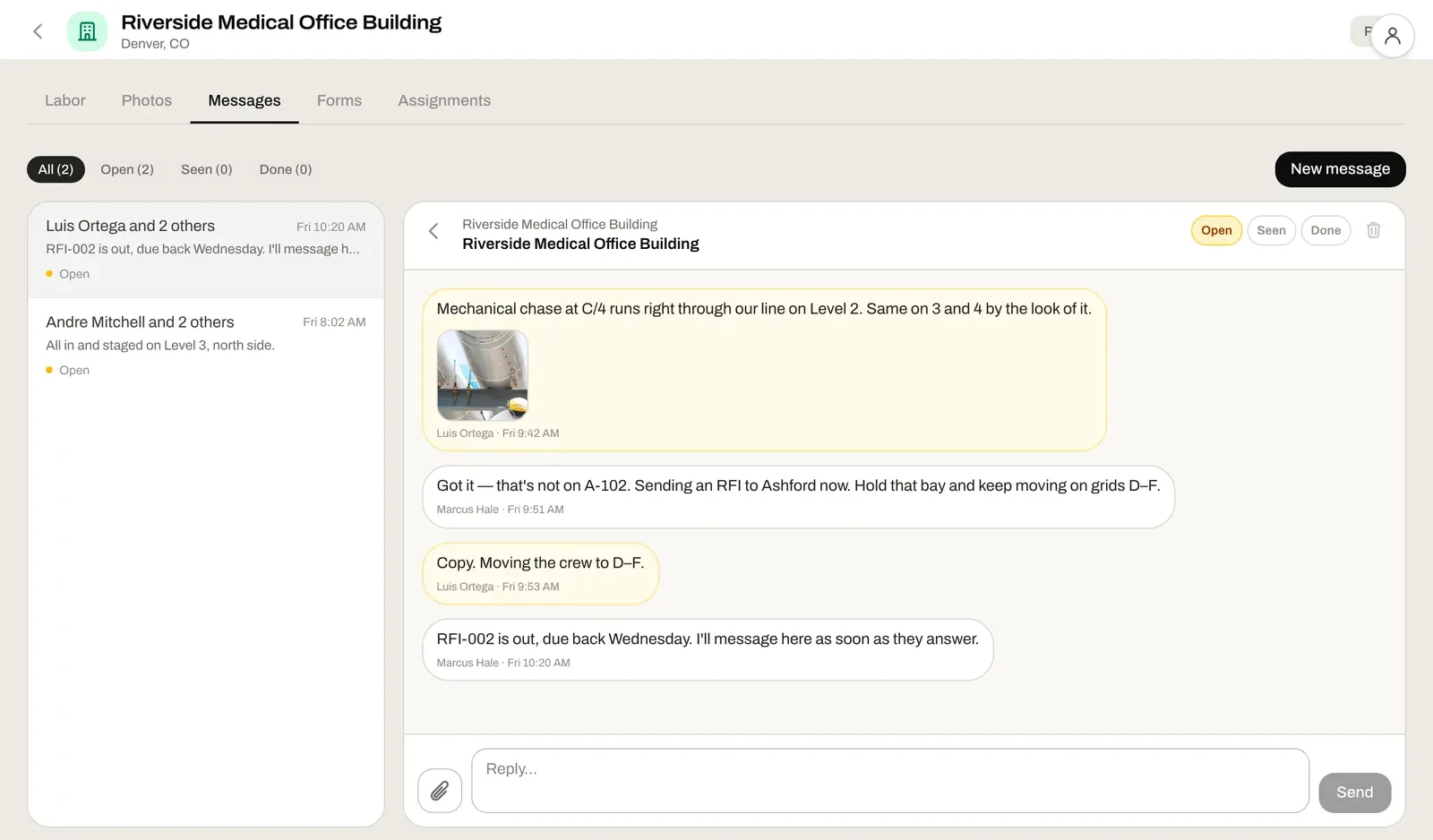
The crew messages the job's project manager from the app, with photos.
Field forms
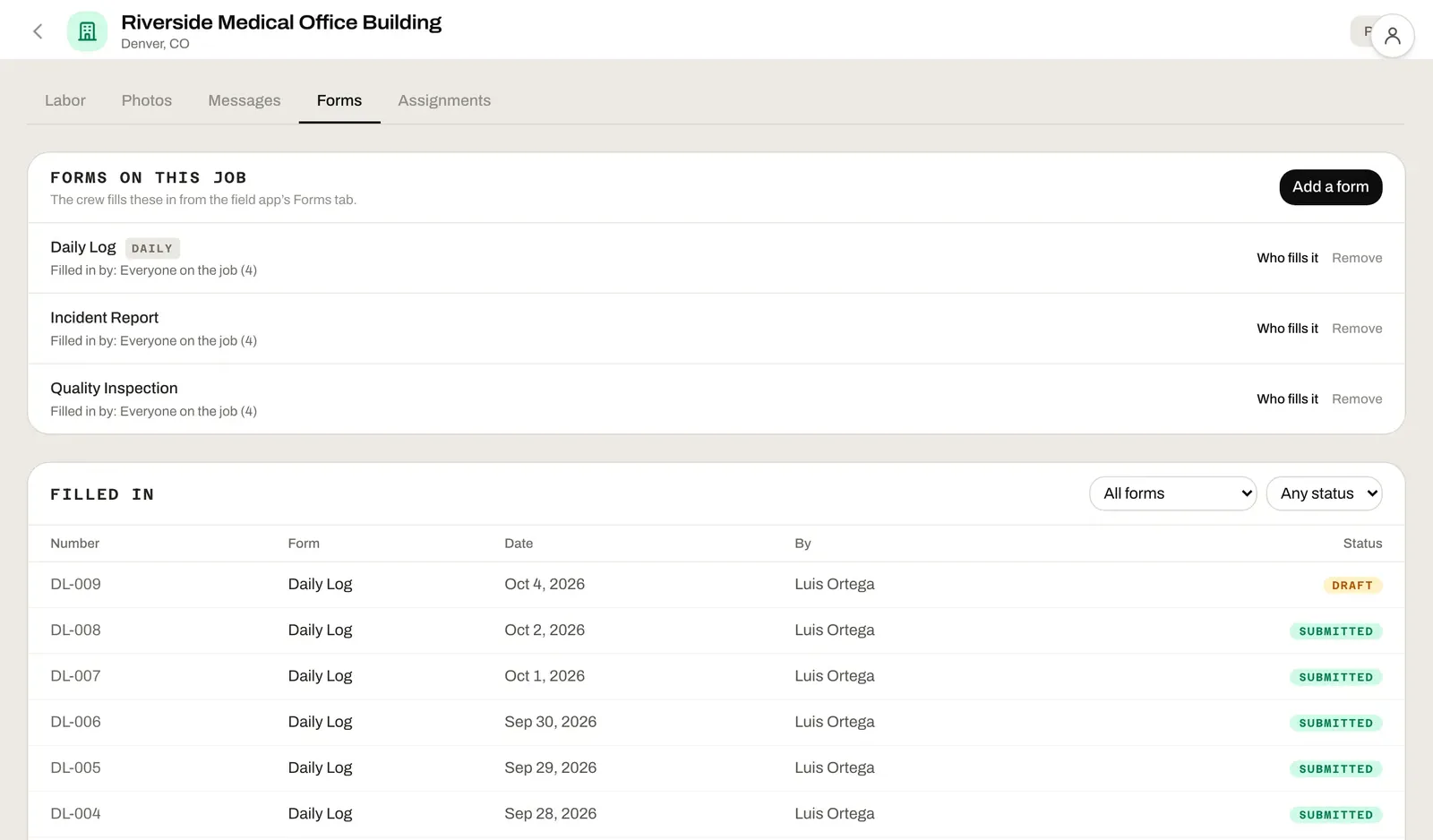
Daily log, incident report and quality inspection, plus any form the office builds.
Records
Every shift by employee or in order. Fix a punch, clock out a forgotten shift, or add a shift or PTO.
Assignments
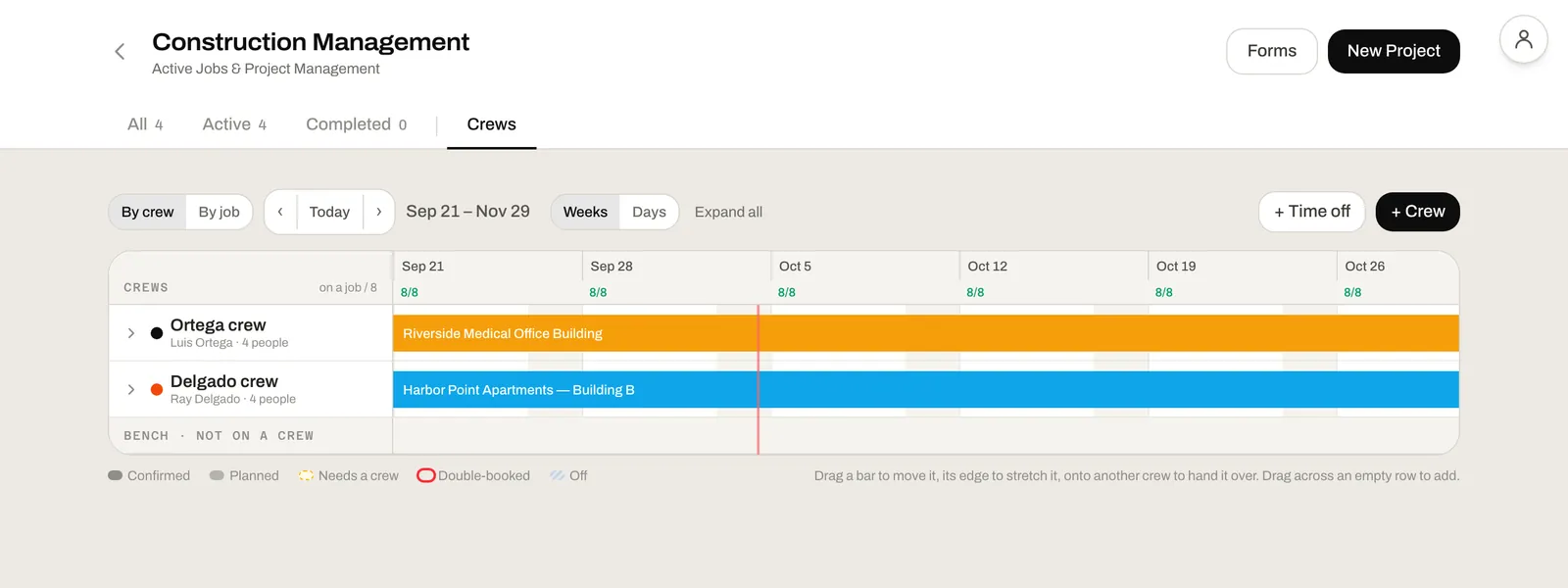
Choose who works on which job, and see the crew on a Crews board by week.
Device Report
See which phone each punch came from.
Export CSV
Download a date range of hours and PTO for payroll. Shifts over 16 hours are flagged.
A free alternative to per-user time tracking apps.
Paying per user for ClockShark or Workyard?
Construction time tracking apps usually charge for every person on the crew.
No trial.ClockShark and Workyard each start with a 14-day trial, and neither has a free plan.Ours is free to use, with no trial.
No price per head.Workyard's plans start at $6 per user a month, billed annually. ClockShark prices its plans per user, with a three-year contract term.We don't charge per user.
The job comes with it.A time clock alone leaves the drawings, photos and daily logs somewhere else.Our app carries the job's current drawings, photos, messages and forms.
Outgrown a free plan's user limit?
Many free time clock apps stop at a small team.
No cap on crew size.Connecteam's free plan is for up to 10 users. Homebase's free Basic plan covers one location and up to 10 employees. Clockify's free plan is for up to 5 users.Ours has no user limit.
GPS included.Clockify keeps GPS tracking for its paid Pro plan.Punches here record the phone's location and check it against the job's geofence.
Built around jobs.Connecteam, Homebase and Clockify are made for any kind of business.Here each punch belongs to a job, with its own address and geofence.
A closer look at the office side.
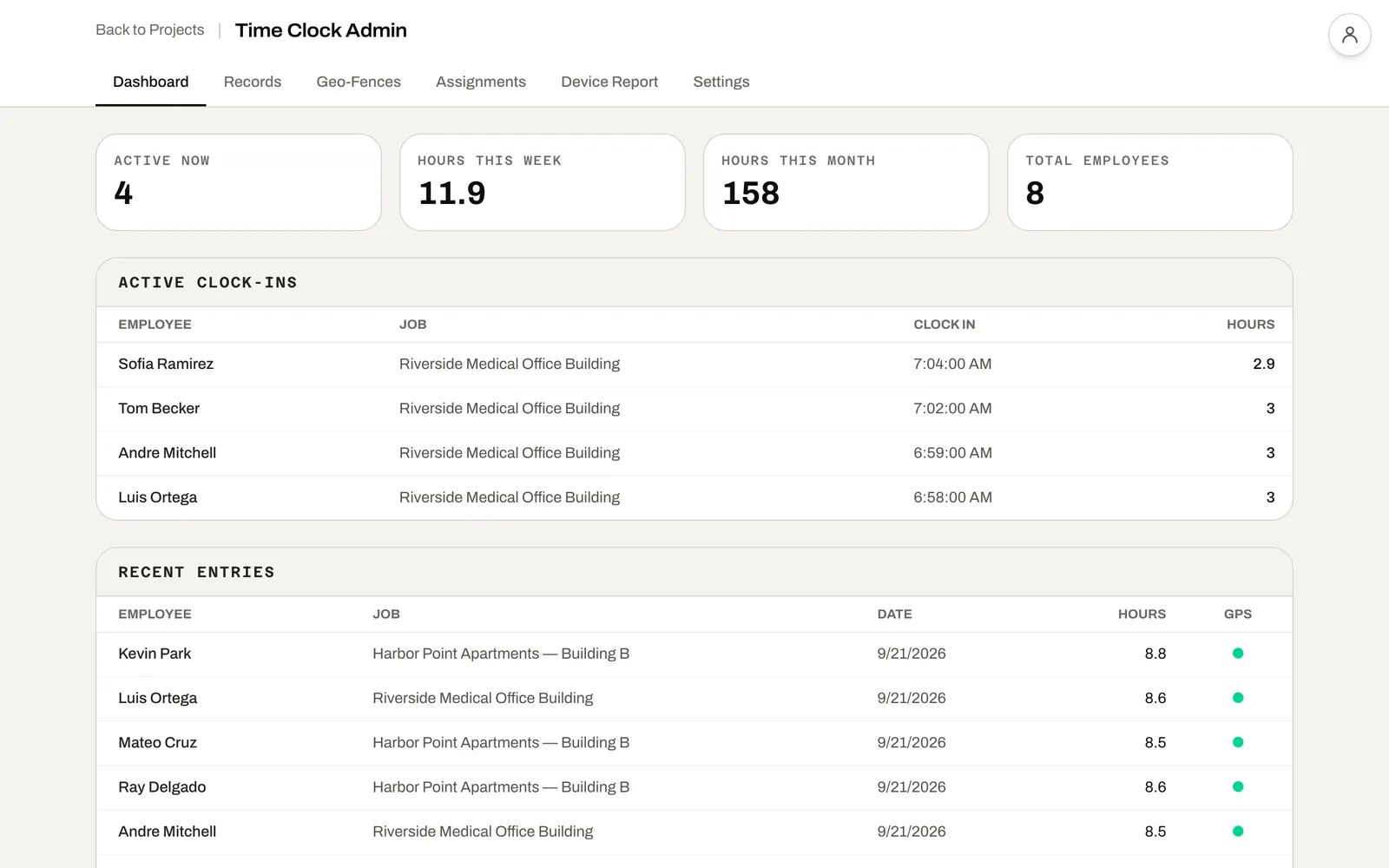
Time Clock Admin Who's clocked in now, hours this week and month, and the latest entries with GPS.Labor on a job Who's on site right now, and hours by employee on this job.Job photos Everything the crew shot on the job, by day, with who took it.Forms Choose the forms on each job and who fills them, and see every one filled in.Messages The crew's messages to the project manager, on the job they're about.Drawings Upload a set and the current sheet of each number is what the crew sees.Crews Each crew and the jobs it's on, week by week.
Free time clock apps compared.
"Free" means different things on different sites. Here's what each vendor's own pricing page says.
Free for unlimited users. Paid prices aren't shown on its page
ConnecteamGeneral
Up to 10 users
Free for up to 10 users. Basic is $29 a month for the first 30 users, billed yearly
HomebaseGeneral
Up to 10 people
Free for 1 location and up to 10 employees. Payroll is $49 a month plus $6 per employee
ClockifyGeneral
Up to 5 users
No GPS on the free plan. Basic is $3.99 per seat a month, billed annually
WorkyardConstruction
14-day trial
From $6 per user a month, billed annually
ClockSharkConstruction
14-day trial
Priced per user, with a three-year contract term. No prices shown
RakenConstruction
No free plan
Time tracking is on Performance, at $59 per user a month, minimum 3 users
QuickBooks TimeAccounting
No free plan
Premium is listed at $20 a month plus $10 per user, and needs QuickBooks Online
What we don't do yet
Some construction time tracking apps do these, and ours doesn't today:
Clocking in without signal. A punch needs a connection.
Picking a cost code at clock-in. Hours are recorded against the job.
An approval step for hours. The office reviews and fixes them in Records.
Overtime rules of your own. Overtime is counted after 40 hours a week.
Sending hours straight to Gusto, ADP or another payroll provider. Hours export as a CSV.
Competitor plans and prices are from each vendor's pricing page, checked November 5, 2026.
Who uses the time clock.
The crew runs it from their phones, and the office runs it from a desk.
Crews and foremen
Clock in to the job, take breaks and check the week's hours on the time card. Open the current drawings, take photos and fill in the day's forms in the same app.
Project managers
Add jobs, upload the drawings and choose the forms on each job. See who's on site in Labor, and answer the crew's messages.
Payroll and the office
In Time Clock Admin, fix punches, add PTO, set the break policy and geofences, check the Device Report and export the pay period to CSV.
How it fits
One of four modules, each free on its own.
Use the time clock by itself, or add the other modules. Any three of the four are still free. Use all four together and it's four months free, then $50 a month for your company.
→ With Project Management
Budgets, job costing, POs, RFIs and change orders. With both modules, the crew's hours on a job flow into its job costing.
→ With Take-Off & Markup
Measure the job's drawings for areas, lengths and counts, and mark them up with clouds, text and callouts.
→ With CRM & Preconstruction
Track bids from draft to won or lost, with your contacts and estimates, before the job reaches the field.
Common questions
Free and pricing
Yes. Field App & Time Clock is free to use on its own, with no credit card, and it isn't a trial. You get the phone app for your crew and Time Clock Admin for the office. You only pay if your company uses all four modules together: Take-Off & Markup, CRM & Preconstruction, Project Management and Field App & Time Clock. That package is four months free, then $50 a month for your company. Any three of the four are still free.
No. There's no price per user and no cap on the size of your crew.
An email address. Create your free workspace, add a job with its address, and add your crew by name and email. Each person gets an invite to set a password, then signs in on the app or in their phone's browser.
The app
Yes. Search "Leviathan Built" on the App Store or Google Play. Nobody has to install anything, though: the same time clock runs in any phone's browser at your workspace's /clock page.
With their email and password. In the app, after the first sign-in, they can choose "Use Face ID instead of your password". There's no PIN to hand out or reset.
Yes. An office admin can set a phone up as a "Shared crew device". After that, anyone on the crew signs in on it with their own email and password, so one phone at the trailer can serve the whole crew.
Clocking in and out needs a connection. There's no offline punch yet. Forms are different: a form keeps what's typed on the phone, so a daily log started with no signal is still there when the signal comes back.
The buttons and prompts around every form come in English and Spanish. When the office writes a form's questions in Spanish too, the person filling it in switches between EN and ES on the form itself.
Hours and payroll
The weekly time card splits hours into Regular and Overtime, with overtime counted after 40 hours in a week. The rule can't be changed yet, so daily overtime and state-specific rules aren't calculated.
Yes. Every punch records the phone's location and checks it against the job's geofence, which is set from the job's address. A punch outside the fence is allowed and flagged for the office. If the phone has no GPS fix, the punch is recorded without a location. The app also takes a photo at clock-in and clock-out.
Yes. In Time Clock Admin, Records lists every shift by employee or in order, filtered by job or employee. You can fix a punch inline, use Clock Out on a shift someone forgot to end, delete an entry, or use + Add Shift and + Add PTO.
Yes, as a CSV. Export CSV in Time Clock Admin downloads a date range with Employee, Job, Type, PTO Category, Date, Clock In, Clock Out, Break (min), Worked Hours, PTO Hours, GPS Verified and Review, and flags any shift over 16 hours. There's no direct export to Gusto, ADP or another payroll provider yet.
Not today. Hours are recorded against the job. If you also use Project Management, the crew's hours on a job flow into that job's costing.
Not yet. The office reviews and fixes hours in Records, and there's no approve-and-lock step.
Comparisons
Start by checking what "free" covers. Some free plans stop at 5 or 10 users, some keep GPS for paid plans, and some are a 14-day trial. Then check the construction basics: punches tied to a job, a geofence for each site, a photo on the punch and an export your payroll can use. Leviathan Built's free plan has no user cap and includes all of those. It doesn't do offline punching, cost codes at clock-in or hours approval yet.
busybusy is a construction time tracking app with a free plan and paid Pro and Premium plans. If you need cost codes at clock-in, offline punching or an approval step for hours, check its plans, because we don't have those yet. Our free plan puts the job's current drawings, photos, forms and messages to the project manager in the same app as the time clock.
Both are workforce apps with free plans for small teams. Connecteam's is free for up to 10 users, and Homebase's Basic plan is free for one location with up to 10 employees. Leviathan Built has no user cap, and it's built around construction jobs: each job has its own geofence, drawings, photos and forms.
No. Leviathan Built doesn't connect to QuickBooks, and hours come out as a CSV. QuickBooks Time needs a QuickBooks Online account, and its Premium plan is listed at $20 a month plus $10 per user.
Put your crew on the clock for free.
Create a workspace, add a job and invite your crew. No card, and no price per user.